


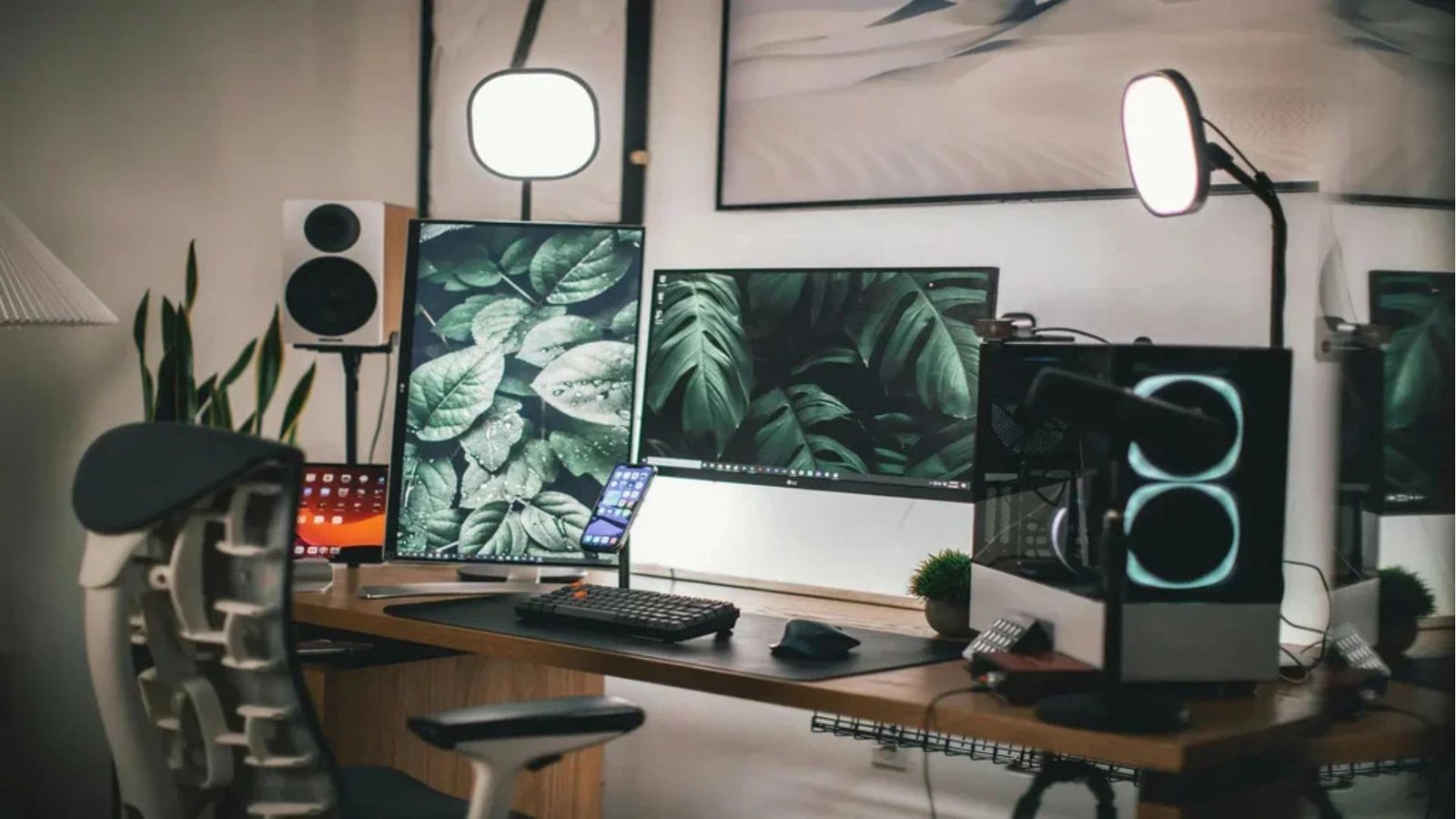
A dual monitor setup gives you more usable screen space without forcing you to constantly switch between windows. One display can hold your main task while the second keeps email, research, communication tools, reference material, or monitoring software visible.
The basic process is straightforward: confirm that your computer supports two displays, connect each monitor through compatible video ports, extend the desktop in your operating system, and arrange the screens to match their physical positions. The quality of the experience, however, depends heavily on monitor size, resolution, cables, desk positioning, and display settings.
What You Need for a Dual Monitor Setup
Before buying adapters or extra hardware, check the ports on your computer and monitors.
Modern desktops and laptops commonly use:
- HDMI
- DisplayPort
- USB-C with DisplayPort Alt Mode
- Thunderbolt
Having two USB-C ports does not automatically mean both can drive monitors. Similarly, a USB-C connector may support data and charging without supporting video. Check your computer manufacturer’s specifications before selecting cables or a docking station.
Your graphics hardware must also support the number, resolution, and refresh rate of displays you plan to use. Apple notes that the number of external displays supported by a Mac varies according to the model as well as the resolution and refresh rate being used.
For the cleanest workspace, two monitors with similar dimensions are often easier to align, although matching models are not required.
| Component | Practical Recommendation | Why It Matters |
|---|---|---|
| Monitor size | 24–27 inches for typical desk use | Offers useful workspace without requiring an unusually deep desk |
| Resolution | 1080p or 1440p for general work | Balances clarity, workspace, and hardware demands |
| Connection | DisplayPort, HDMI, USB-C, or Thunderbolt | Must match your computer’s video-output capabilities |
| Monitor stand | Adjustable stand or dual monitor arm | Improves height, alignment, and desk space |
| Refresh rate | Match where practical | Helps cursor movement and window transitions feel consistent |
How to Set Up Two Monitors
Start by turning on both displays and connecting them directly to your computer, dock, or compatible adapter.
Set Up Two Monitors in Windows
Windows 11 normally detects connected displays automatically. Open:
Settings > System > Display
Select Identify to see which number corresponds to each physical monitor. Then drag the display boxes until the arrangement on screen matches the actual positions on your desk.
Under Multiple displays, choose Extend these displays if you want one continuous desktop rather than identical content on both screens.
Microsoft also allows users to switch display modes quickly with Windows key + P. Available options include PC screen only, Duplicate, Extend, and Second screen only.
For most productivity-focused dual monitor setup configurations, Extend is the appropriate option.
Check each screen’s resolution and scaling afterward. Using the monitor’s recommended or native resolution generally provides the sharpest image.
Configure Two Displays on a Mac
Connect both monitors using the appropriate HDMI, Thunderbolt, USB-C, or adapter configuration supported by your Mac.
Then open:
Apple menu > System Settings > Displays
macOS lets you arrange connected displays, select resolution options, and configure refresh rates where supported. Apple recommends checking the specifications for your particular Mac because external-display support differs between models.
If one display is not recognized, verify the cable and adapter before assuming there is a software problem.
Position the Monitors Correctly
Physical placement can matter as much as resolution.
If both screens receive approximately equal use, place them side by side with their inner edges meeting near the center of your viewing area. Angle them slightly inward so you do not need excessive head movement.
If one screen is your primary display, position that monitor directly in front of you and place the secondary screen beside it.
Try to keep the upper portions of the displays around comfortable eye level. A monitor arm can make a dual monitor setup significantly easier to adjust because each screen can be moved independently without occupying as much desk surface.
People working heavily with documents or programming may also prefer turning the secondary screen vertically. Portrait orientation can display more lines of text, long web pages, documentation, or messaging threads.
💡 Pro Tip
Before adjusting software scaling, physically align the monitors so their visible screen areas sit at similar heights. Misaligned screens can make the cursor appear to “jump” vertically when moving between displays, even when your operating-system arrangement is technically correct.
Should Both Monitors Be the Same?
They do not have to be.
Two identical monitors provide consistent screen dimensions, pixel density, color characteristics, bezels, and controls. This can make the workspace feel more unified.
Mixed displays can still work extremely well. For example, a large high-resolution monitor can serve as the primary display while a smaller vertical monitor handles messages, documents, or dashboards.
The main concern is consistency. Large differences in scaling, resolution, brightness, or refresh rate can feel distracting when moving windows between screens.
For creative work involving photography, video, or design, color consistency becomes particularly important. General office users usually have much more flexibility.
Using a Dock or Daisy-Chained Monitors
Laptop users may benefit from a USB-C or Thunderbolt docking station. A dock can reduce several monitor, charging, network, and peripheral connections to one laptop cable, provided both the dock and computer support the required display configuration.
Another option is daisy chaining.
Compatible DisplayPort Multi-Stream Transport systems can send multiple display streams through a chain of monitors. USB-C with DisplayPort capabilities and Thunderbolt may also support certain chained configurations. HDMI itself does not provide DisplayPort MST-style daisy chaining.
Compatibility varies, so check the computer, dock, and monitor specifications rather than relying only on connector appearance.
Common Problems and Quick Fixes
If the second monitor remains blank, start with the simplest possibilities.
Reconnect the cable at both ends and confirm that the monitor is using the correct input source. Try another cable or another video port if available.
In Windows, open Display settings and use the Detect option if the second display does not appear automatically. Microsoft also recommends checking physical connections and Windows updates when troubleshooting external displays.
If the monitor appears but looks blurry, verify its resolution and scaling settings.
Flickering or limited refresh rates may indicate a cable, adapter, dock, graphics-driver, or bandwidth limitation. Higher resolutions and refresh rates demand more display bandwidth, so hardware capabilities become increasingly important with premium monitors.
📌 Key Takeaway
A reliable dual monitor setup depends less on simply owning two screens and more on compatibility. Confirm your computer’s display capabilities first, use appropriate cables, extend the desktop, match the software arrangement to the physical desk layout, and adjust screen height and scaling for comfortable daily use.
Frequently Asked Questions
Can any computer run two monitors?
Not necessarily. Many modern computers support multiple displays, but the number of external monitors depends on the graphics hardware, available video outputs, USB-C or Thunderbolt capabilities, and sometimes the resolution and refresh rate being requested. Check the manufacturer’s specifications for your exact computer model before purchasing additional equipment.
Is HDMI or DisplayPort better for two monitors?
Either can work well when both the computer and monitors support the required resolution and refresh rate. DisplayPort can offer additional flexibility for certain multi-display configurations, including supported MST daisy chains. HDMI remains a practical option when each monitor has its own direct output connection.
Do dual monitors reduce computer performance?
Additional displays require the graphics system to render more pixels. For normal web browsing, documents, spreadsheets, and communication software, the impact may be modest on suitable hardware. Gaming, video editing, 3D applications, high resolutions, or high refresh rates can place substantially greater demands on the GPU.
Should I use duplicate or extend mode?
Use Extend for most productivity tasks because each monitor becomes a separate workspace. Duplicate mode displays essentially the same content on both screens and is better suited to presentations, demonstrations, classrooms, or situations where another person needs to see your main display.
Can I use two different monitor sizes?
Yes. Different sizes, brands, and resolutions can work together. Adjust resolution, scaling, positioning, and monitor height to make movement between screens comfortable. Matching models usually provide a more consistent appearance, but they are not required for an effective dual-screen workspace.
Build a Setup Around How You Work
The best configuration is not necessarily the most expensive one. A well-planned dual monitor setup should match the applications you use, the available desk space, your computer’s connection capabilities, and the way you divide tasks between screens.
Confirm hardware compatibility before buying adapters or docks, then spend time arranging resolution, scaling, height, and screen positioning. Those small adjustments usually have a greater effect on everyday comfort than adding unnecessary equipment.
