


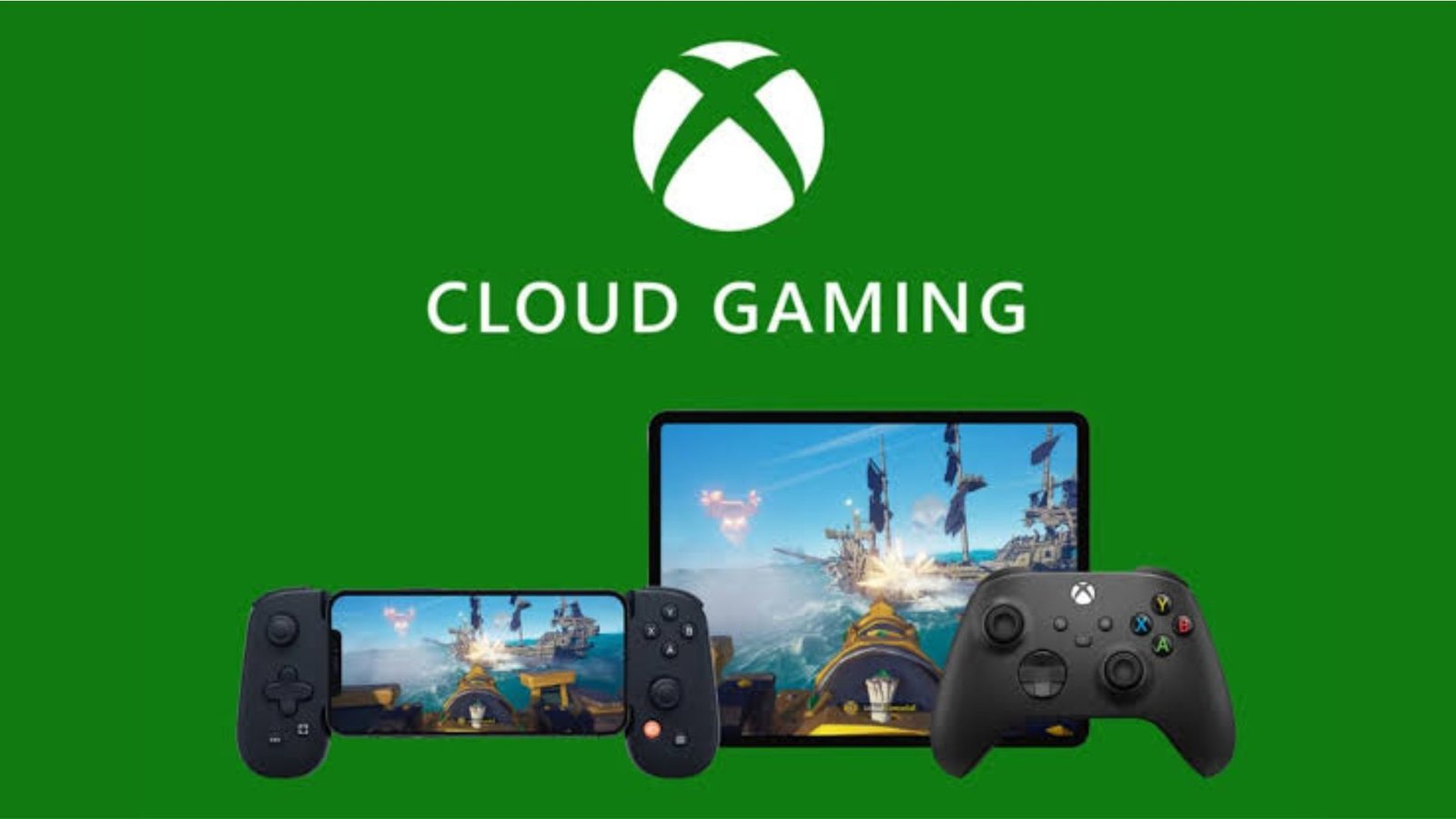
Want to play Xbox games without buying an expensive console? Slow downloads, limited storage, and costly gaming hardware can make it difficult to enjoy your favorite titles. Xbox cloud gaming offers another option by streaming supported games over the internet to compatible devices. With the right subscription, a stable connection, and a supported browser or app, you can play on a phone, computer, tablet, or television without installing every game locally.
What Is Xbox Cloud Gaming?
Xbox cloud gaming is Microsoft’s game-streaming service that lets players run supported Xbox games on remote servers and receive the gameplay video on their devices. Your controller inputs travel over the internet, allowing you to control the game without needing a powerful gaming PC or an Xbox console at home.
Instead of downloading and installing a full game, you stream it much like a video. However, gaming requires continuous two-way communication, so your internet speed, latency, and network stability affect how responsive the experience feels.
The service is part of the Xbox ecosystem and is commonly associated with Xbox Game Pass, although available access methods and subscription requirements can change.
How Does Xbox Cloud Gaming Work?
The process is straightforward:
- Choose a supported game from the available cloud gaming catalog.
- Sign in to your eligible Microsoft or Xbox account.
- Open the game through a supported browser, app, or device interface.
- Connect a compatible controller or use another supported input method.
- Start playing while Microsoft’s servers handle the game’s processing.
Your device mainly needs to display the stream and send your controls. That makes cloud gaming useful for people who own basic laptops, older computers, or compatible mobile devices.
Xbox Cloud Gaming Requirements: What Do You Need?
Before starting, check whether your device, internet connection, account, and region support the service. You do not need a dedicated gaming computer, but you do need a compatible way to access the stream.
The following table summarizes the main requirements.
| Requirement | What you need |
|---|---|
| Microsoft account | Required to sign in and access eligible games |
| Game subscription | An eligible Game Pass plan for subscription-based games |
| Free gaming option | Fortnite and other eligible free-to-play titles where supported |
| Internet speed | Around 10 Mbps minimum on some mobile devices; 20 Mbps is recommended for PCs, consoles, and tablets |
| Browser | A supported version of Microsoft Edge, Google Chrome, or Safari |
| Controller | A compatible controller for games that require one |
| Compatible device | Supported Windows PC, Mac, phone, tablet, console, TV, or other device |
| Supported region | Availability depends on Microsoft’s supported markets |
| Storage | Usually no full game installation is required for streamed titles |
Requirements can vary by game, device, subscription, and region. A fast connection also needs low latency and consistent performance to deliver responsive gameplay.
How to Start Xbox Cloud Gaming
Getting started does not require a complicated installation process. Follow these steps to check your access and launch a supported game.
- Check device compatibility. Make sure your device and browser support cloud streaming.
- Prepare your Microsoft account. Create an account if you do not already have one.
- Check your subscription. Confirm that your chosen game is available through your plan or as an eligible free-to-play title.
- Open the cloud gaming service. Use the official Xbox cloud gaming interface in a supported browser or app.
- Sign in. Enter your Microsoft account credentials.
- Choose a game. Find a cloud-enabled title in the available catalog.
- Connect your controls. Pair a compatible controller or select supported touch or keyboard controls.
- Start playing. Allow the stream to load, then check that the controls respond correctly.
If the game does not appear, check its cloud availability, regional restrictions, and subscription requirements before troubleshooting your device.
Xbox Cloud Gaming Fortnite: Can You Play for Free?
Yes. Fortnite is one of the most useful options for people who want to try cloud gaming without paying for a Game Pass subscription. In supported regions, players can stream Fortnite using a free Microsoft account and a compatible device.
How to Play Fortnite Through Cloud Gaming
- Open a supported browser on your phone, tablet, or computer.
- Access the Xbox cloud gaming service.
- Sign in with your Microsoft account.
- Select Fortnite from the available games.
- Start the stream and use a compatible controller or supported touch controls.
The Fortnite experience does not require a full game download through the cloud service. However, you still need a reliable internet connection, and access may depend on regional availability and service conditions.
Does Fortnite Progress Carry Across Devices?
Fortnite progress can carry across supported platforms when you use the appropriate linked Epic Games account. Your account connection is important for retaining access to your progress and eligible items.
Check that you are using the same Epic Games account associated with your existing Fortnite profile. Do not assume that signing in with a different account will automatically transfer your progress.
Xbox Cloud Gaming on PC and Windows Laptops
You can use a compatible Windows computer to stream supported games without installing every title. This can be helpful if your laptop has limited storage or lacks the graphics hardware needed to run demanding games locally.
How to Play on a Windows PC
- Update Windows and your preferred supported browser.
- Check your internet connection and close bandwidth-heavy applications.
- Sign in with your Microsoft account.
- Select a game that supports cloud streaming.
- Connect a compatible controller, or use mouse and keyboard when the game supports them.
The xbox cloud gaming pc experience depends more on your network and streaming compatibility than on having a high-end graphics card. However, an outdated browser, weak Wi-Fi signal, or background downloads can still cause problems.
Can You Use a Low-End Laptop?
Yes, a basic laptop may work well if it can run a supported browser and maintain a stable internet connection. Cloud servers handle most of the game’s processing, so you may not need a dedicated graphics card.
Your laptop still needs enough processing power to decode the stream smoothly. Older hardware can struggle with browser performance, video decoding, or high-resolution playback.
Xbox Cloud Gaming on iOS and iPhone
The xbox cloud gaming ios experience generally works through a supported browser rather than requiring a dedicated cloud gaming app. This approach can make it easier to play on compatible iPhones and iPads without installing full console games.
How to Play on an iPhone or iPad
- Update your device to a supported operating system.
- Open Safari or another supported browser.
- Access the Xbox cloud gaming interface.
- Sign in with your Microsoft account.
- Select an eligible game and start streaming.
Depending on the title, you may be able to use touch controls or connect a compatible controller. A controller can make action games easier to play, especially when precise movement and aiming matter.
Can You Add Cloud Gaming to Your Home Screen?
On supported devices, you may be able to add the cloud gaming website to your Home Screen for quicker access. This creates a convenient shortcut without requiring a separate native cloud gaming application.
Xbox Cloud Gaming on Android Phones and Tablets
Android devices offer another convenient way to stream games while traveling or relaxing away from a computer. Supported Android phones and tablets can access cloud gaming through compatible browsers, while available app features vary by device and region.
Steps for Android Users
- Update Android and your browser.
- Connect to a stable Wi-Fi network or suitable mobile data connection.
- Open the supported cloud gaming interface.
- Sign in with your Microsoft account.
- Choose a supported game and launch it.
A 5 GHz Wi-Fi connection can help reduce interference when your router and device support it. If you use mobile data, monitor your data allowance because prolonged streaming can consume a significant amount of bandwidth.
Is a Dedicated Android App Required?
Not always. Browser access is an important option for Android users, and the availability of a dedicated Xbox app does not mean every cloud game launches through that app. Check the current instructions for your device and the specific game.
Be cautious about downloading unofficial installation files. A website advertising an xbox cloud gaming apk may not provide an authentic or safe application.
Xbox Cloud Gaming on Mac: Does It Work?
Yes, compatible Mac computers can access cloud gaming through a supported browser. This gives Mac users a way to play selected Xbox games without installing the Windows version of each title or buying an Xbox console.
How to Play on a MacBook
- Update macOS and your browser.
- Connect to a stable network.
- Open the official Xbox cloud gaming interface.
- Sign in with your Microsoft account.
- Choose a supported game and begin streaming.
You do not need to install Windows just to use browser-based cloud streaming. However, the available games, control options, and streaming quality can vary, so check compatibility before choosing a title.
Xbox Cloud Gaming Download: Do You Need to Install Games?
One of the main advantages of cloud streaming is that you usually do not need to download the full game to your device. The remote server runs the game while your device receives the video and sends your inputs.
It is important to understand the difference between streaming a game and installing it.
| Feature | Cloud streaming | Local download |
|---|---|---|
| Full game installation | Usually not required | Required |
| Device storage | Lower game-storage needs | Depends on game size |
| Internet connection | Needed during gameplay | Often needed for updates and online play |
| Hardware demand | Mainly stream decoding | Depends on the game’s system requirements |
| Offline play | Generally unavailable | Possible for some games |
| Game updates | Handled on the service side | May require local downloads |
| Performance factors | Network quality and latency | Hardware, settings, and game optimization |
Streaming does not eliminate every download. Your browser or app may still need updates, and some devices may store temporary data. If you prefer offline gaming, local installation may be the better choice for supported titles.
Xbox Cloud Gaming App: Which App Should You Use?
The xbox cloud gaming app question can be confusing because Xbox offers different applications for different devices. The Xbox app, a device’s app store, and browser-based cloud streaming do not always provide identical features.
Consider these options:
- Windows PC: Check the Xbox app and supported browser options for your device.
- Android: Use the supported browser or an officially available Xbox application where applicable.
- iPhone and iPad: Browser-based access is a common route for cloud gaming.
- Smart TVs and streaming devices: Availability depends on the supported model and its software.
- Xbox consoles: Use the console’s supported cloud gaming features where available.
Always check whether a game can actually be streamed on your chosen device. Installing an Xbox application does not automatically mean every game in the Xbox catalog is available through the cloud.
Xbox Cloud Gaming Free: What Can You Play Without Paying?
You can access certain free-to-play games through cloud streaming without purchasing a Game Pass subscription. Fortnite is a prominent example, provided the service is supported in your region.
However, free access to one game does not mean the entire cloud gaming library is free.
| Access type | What to expect |
|---|---|
| Eligible free-to-play games | May be available with a free Microsoft account |
| Subscription catalog | Requires an eligible subscription and access to the selected game |
| Streamable games you own | Availability depends on whether the title supports cloud streaming |
| Purchased game without cloud support | May require local installation or another supported method |
| Promotional access | Terms, duration, and eligibility may vary |
Before paying for a subscription, check the specific game’s requirements. This prevents confusion when a free game launches successfully but another title requests a subscription.
Xbox Cloud Gaming Beta: Is It Still in Beta?
The term xbox cloud gaming beta remains common in searches, tutorials, and older articles. However, Microsoft announced in December 2025 that its cloud gaming service had moved out of beta.
That means older guides may contain outdated instructions, subscription details, or device requirements. When a tutorial mentions beta access, check whether it reflects the current service rather than assuming its information remains accurate.
For the best experience, prioritize current compatibility details and the requirements shown for your account and region.
Xbox Cloud Gaming Unblocked: Is It Safe to Use?
Searches for xbox cloud gaming unblocked often come from students, employees, or players using networks that restrict gaming websites. Some websites claim to bypass those restrictions, but they may be unreliable or unsafe.
Consider these points before using an unofficial service:
- Unverified sites may collect login information or display deceptive advertisements.
- Proxy services can introduce additional latency and reduce streaming quality.
- School or workplace networks may prohibit gaming under their acceptable-use policies.
- Modified apps and unknown downloads can expose your device to security risks.
The safer option is to use the official service on a permitted network. Avoid entering your Microsoft password on unfamiliar websites or using tools intended to bypass network security controls.
Is Xbox Cloud Gaming Down Right Now?
If a game will not launch, the service might be experiencing an outage, but your own device or network could also be responsible. A failed connection alone does not prove that Microsoft’s servers are down.
Try these checks before changing your settings:
- Check official Xbox service-status information.
- Reload the cloud gaming page or restart the application.
- Sign out and sign back in.
- Test another supported game.
- Switch to a different network if possible.
- Restart your router if other online services are also struggling.
If several games fail across multiple devices and networks, a service-side issue becomes more plausible. If only one device has trouble, focus first on that device’s browser, network settings, or software.
Xbox Cloud Gaming Not Working: Common Fixes
The xbox cloud gaming not working problem can have several causes, including a weak connection, an expired subscription, an unsupported browser, or a temporary service issue.
Use the troubleshooting table below to identify the likely cause.
| Problem | Possible cause | What to try |
|---|---|---|
| Game will not launch | Temporary error or unsupported title | Reload the page and check game availability |
| Endless loading screen | Network instability or browser issue | Restart the browser and test another network |
| Controller not detected | Pairing or compatibility issue | Reconnect the controller and check its battery |
| Blurry gameplay | Limited bandwidth or unstable Wi-Fi | Move closer to the router or use Ethernet |
| Input lag | High latency or network congestion | Close downloads and use a more stable connection |
| Sign-in loop | Session or account problem | Sign out, clear relevant browser data, and sign in again |
| Game asks for payment | Subscription or game eligibility requirement | Check the title’s access conditions |
| Frequent disconnections | Weak Wi-Fi or unstable mobile data | Try another network and reduce network congestion |
How to Reduce Lag and Improve Streaming Quality
Cloud gaming needs a consistent connection, not just a high advertised download speed. High latency can make a game feel slow even when video quality looks sharp.
For better results:
- Use 5 GHz Wi-Fi or Ethernet when available.
- Pause large downloads and streaming sessions on other devices.
- Keep your device close to the wireless router.
- Update your browser and operating system.
- Avoid crowded public Wi-Fi for competitive games.
- Choose a lower-demand network environment when possible.
These steps can improve performance, but they cannot eliminate every problem caused by distance from the servers or service-side limitations.
Xbox Cloud Gaming Login and Sign-In Problems
Your xbox cloud gaming login connects your Microsoft account to your eligible games and services. If the sign-in process fails, check your credentials and account access before reinstalling applications.
Steps to Fix Login Errors
- Confirm that you are using the correct Microsoft account.
- Check whether your account requires additional security verification.
- Make sure cookies and essential site features are not being blocked in ways that interrupt authentication.
- Try a supported browser with the latest updates.
- Sign out of the account and start a fresh session.
- If you cannot access the account at all, use Microsoft’s official account-recovery process.
Never share your password or verification code with someone offering to unlock a game or repair your account.
Xbox Cloud Gaming and Roblox: Can You Play It?
People searching for xbox cloud gaming roblox generally want to know whether they can stream Roblox without downloading it. Roblox is a separate gaming platform, and its availability should not be assumed just because Xbox cloud streaming supports many other titles.
To determine whether Roblox is available through the service:
- Check the current cloud gaming catalog.
- Confirm that the title is supported on your device and in your region.
- Check whether Roblox offers an official app for your device.
- Use Roblox’s own supported access methods if cloud streaming is unavailable.
If Roblox does not appear in the cloud catalog, you cannot assume that an unofficial website or application will make it playable through Xbox servers.
Xbox Cloud Gaming vs. Traditional Gaming: Which Is Better?
Cloud streaming and local gaming suit different needs. Your best option depends on your budget, internet connection, available hardware, and whether you need to play offline.
| Factor | Cloud gaming | Local gaming |
|---|---|---|
| Initial hardware cost | Can be lower | May be higher |
| Storage requirements | Usually lower | Often higher |
| Internet dependence | High during play | Varies by game |
| Offline gaming | Generally not supported | Available for some titles |
| Graphics performance | Depends on streaming service and network | Depends on local hardware |
| Portability | Strong on supported devices | Depends on your device |
| Latency | Affected by network and server distance | Usually lower for local processing |
| Game access | Depends on catalog, ownership, plan, and region | Depends on purchase, platform, and compatibility |
Cloud gaming is appealing if you want flexibility without buying expensive hardware. Local gaming may be better if you have a powerful PC, need offline access, or prioritize the lowest possible input latency.
How to Choose the Best Device for Xbox Cloud Gaming
Your ideal device depends on where you play and how you prefer to control games. A phone is convenient for short sessions, while a laptop or television offers a larger screen.
| Device | Best use | Main consideration |
|---|---|---|
| Windows laptop | Everyday and casual gaming | Browser and network performance |
| Desktop PC | Larger-screen gaming | Stable internet and compatible controls |
| MacBook | Streaming without installing Windows games | Browser compatibility |
| iPhone | Portable gaming | Screen size and touch controls |
| Android phone | Gaming while traveling | Battery life and mobile data |
| iPad or Android tablet | Portable gaming with a larger display | Wi-Fi quality |
| Supported smart TV | Playing from the living room | Model and app availability |
| Xbox console | Accessing supported cloud titles | Subscription and game eligibility |
For most beginners, a compatible device you already own is a sensible starting point. Test the service before buying a new controller, upgrading your internet plan, or purchasing additional hardware.
Tips for Getting More Value From Cloud Gaming
A few practical decisions can make your gaming experience more affordable and convenient.
- Check game availability first. Not every Xbox title supports streaming.
- Test your connection. A stable connection matters more than an impressive speed-test number alone.
- Compare subscription benefits. Choose a plan based on the games and features you actually use.
- Protect your account. Use strong security settings and avoid unofficial login pages.
- Consider your data allowance. Long gaming sessions can consume substantial internet data.
- Check regional support. Service access, catalogs, and payment options may differ by country.
- Keep software updated. Current browsers and operating systems can prevent avoidable compatibility issues.
These habits help you make an informed decision instead of spending money on a service or device that does not meet your needs.
Frequently Asked Questions
1. What is Xbox cloud gaming, and how does it work?
Xbox cloud gaming streams supported games from remote servers to compatible devices. You control the game over the internet without installing the complete game locally.
2. Can I play Fortnite through Xbox cloud gaming for free?
Yes. Fortnite can be streamed without a paid Game Pass subscription in supported regions. You need a free Microsoft account, a compatible device, and a stable internet connection.
3. Do I need an Xbox cloud gaming download or app?
No, not always. Compatible browsers provide access on many devices, including Macs, iPhones, and tablets. App requirements vary by platform and game.
4. Is Xbox cloud gaming available on PC, Mac, iOS, and Android?
Yes, supported devices across these platforms can access the service. Exact operating-system, browser, regional, and subscription requirements vary, so verify compatibility before starting.
5. Why is Xbox cloud gaming not working?
Common causes include unstable internet, browser problems, account errors, subscription restrictions, or a temporary outage. Restart your browser, check your connection, and confirm that the game supports cloud streaming.
6. Can I play Roblox through Xbox cloud gaming?
Do not assume Roblox is available through the cloud gaming catalog. Check the current supported titles and use Roblox’s official access methods if it is not listed.
Conclusion
Xbox cloud gaming gives players a practical way to enjoy supported games without relying on an expensive gaming PC or installing every title. With a compatible device, the correct account, and a reliable internet connection, you can explore cloud gaming at home or on the move.
Start by checking your device compatibility and choosing a game you want to play. If Fortnite is available in your region, it is a convenient way to test the experience before paying for a subscription. For other games, review the catalog and plan requirements carefully so you can choose the option that best fits your budget and gaming habits.
