


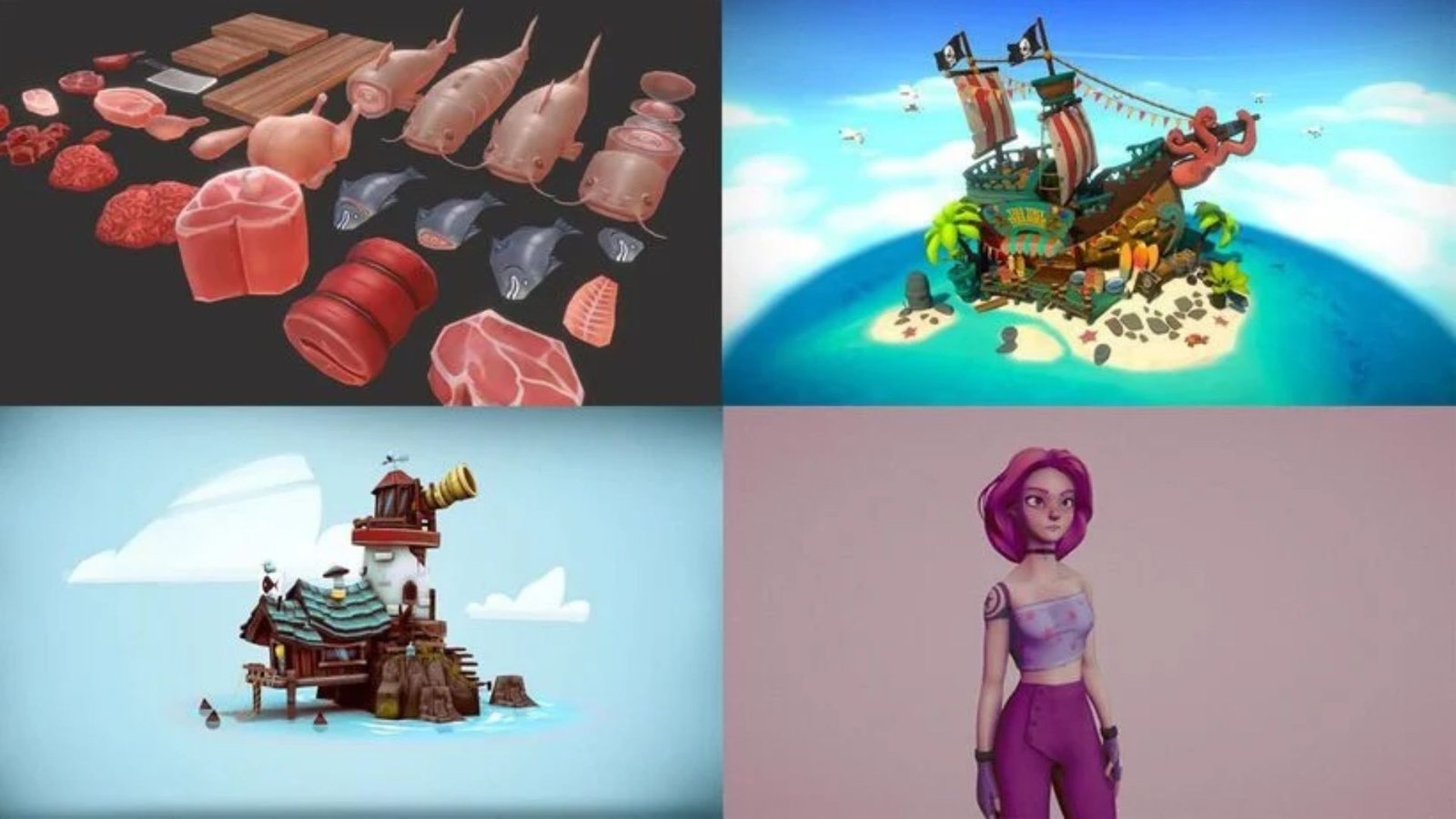
Finding high-quality free 3D models can be frustrating. Some websites hide useful downloads behind paid listings, while others provide files that won’t open in your software. Choosing the wrong model can waste hours or create licensing problems. Fortunately, trusted platforms such as CGTrader, TurboSquid, Sketchfab, Free3D, and CADNav make the search easier. This guide explains where to download compatible models, compare file formats, and choose assets that fit your project without unnecessary costs.
What Are Free 3D Models, and How Do They Work?
Free 3D models are digital objects that you can download and use in compatible 3D software without paying a purchase fee. They represent objects such as furniture, vehicles, buildings, characters, machines, and decorative items.
A 3D model contains geometric information that defines its shape. Depending on the file, it may also contain materials, textures, animations, and structural details.
For example, a downloadable chair model might include its frame, seat, legs, and surface textures. You can place that chair inside a virtual room, change its appearance, or prepare it for another supported application.
Common uses include:
- 3D printing: Creating physical objects with a printer.
- Game development: Building characters, props, and environments.
- Animation: Creating moving scenes and digital characters.
- Architecture: Designing interior layouts and building visualizations.
- Product design: Testing ideas and creating product presentations.
- Education: Learning modeling, texturing, lighting, and rendering.
The important difference is that a free download is not necessarily free from copyright restrictions. Always inspect the individual asset’s license before using it in a public or commercial project.
Which Websites Offer the Best Free 3D Models in 2026?
CGTrader, TurboSquid, Sketchfab, Free3D, and CADNav are useful starting points for downloading 3D assets. Each serves different needs, so the best choice depends on your software, desired format, and intended use.
Complete Comparison of the Best 3D Model Websites
| Platform | Best For | Common Formats | Main Advantage | What to Check |
|---|---|---|---|---|
| CGTrader | Product models, architecture, printable assets | OBJ, FBX, STL, BLEND and others | Dedicated free listings and varied categories | Individual license and included files |
| TurboSquid | Rendering, visualization, realistic assets | OBJ, FBX, MAX and others | Professional marketplace with a free filter | Software compatibility and usage rights |
| Free3D | Beginners, props, general models | OBJ, FBX, STL, BLEND, MAX | Format and category browsing | Model quality and license |
| Sketchfab | Interactive previews, scans, game assets | GLB, glTF, OBJ and others | Inspect models in 3D before downloading | Attribution and commercial restrictions |
| CADNav | CAD assets, textures, design resources | Varies by asset | Models and supporting graphics resources | File details, license, and compatibility |
Formats shown are examples, not guarantees for every download. Always check the specific model listing.
How to Choose the Right Website
| Your Goal | Recommended Starting Point | What to Search For |
|---|---|---|
| Create an animation | Sketchfab, CGTrader | Rigged character, FBX, animation |
| Design a living room | CGTrader, TurboSquid | Sofa, chair, interior furniture |
| Practice with Blender | Free3D, CGTrader | BLEND, OBJ, FBX |
| Make a 3D print | CGTrader, Free3D | STL, watertight, printable |
| Create a game | Sketchfab, CGTrader | Low-poly, PBR, game-ready |
| Find CAD resources | CADNav | CAD components, technical models |
| Practice realistic rendering | TurboSquid, CGTrader | Textured, high-poly, PBR |
A good search begins with the intended application rather than the appearance of the model alone.
How to Find CGTrader Free 3D Models
CGTrader provides a dedicated collection of free assets alongside its commercial catalog. Its categories cover architecture, furniture, vehicles, characters, household items, and other design subjects.
The cgtrader free 3d models official section is particularly useful when you need to narrow a search by project type. Its marketplace also separates general 3D assets from 3D-printing categories.
How to Download a Model From CGTrader
- Open the CGTrader website and select the free model category.
- Enter a specific search term, such as wooden dining chair.
- Review the preview images and technical details.
- Check the available formats and included textures.
- Read the license information on the listing.
- Complete any required account steps and download the available files.
What Makes CGTrader Useful?
CGTrader offers a broad selection of assets suitable for several workflows. Designers can search for decorative objects, furniture, technical components, and printable designs without treating every model as part of the same category.
For example, an interior designer may prefer an OBJ or FBX furniture model, while someone preparing a physical prototype may need an STL file.
Best for: Designers who want a marketplace with detailed categories and multiple asset types.
Important: A model appearing in the cgtrader free 3d models section does not automatically mean it is approved for unrestricted resale, redistribution, or every commercial use.
How to Use the TurboSquid Free 3D Models Section
TurboSquid is a marketplace commonly used to find models for visualization, rendering, advertising, and creative production.
The turbosquid free 3d models section allows users to browse listings filtered by price. The official marketplace supports a dedicated free-results view, making it easier to separate free assets from paid ones.
Steps to Find Free Assets on TurboSquid
- Visit the official TurboSquid marketplace.
- Search for an object or category.
- Apply the free price filter.
- Select a model with suitable preview images.
- Review its format, technical specifications, and usage terms.
- Download it through the provided process.
Why Choose TurboSquid?
TurboSquid is worth checking when visual detail is a priority. For architectural presentations or product scenes, look for models with properly organized geometry, materials, and texture maps.
However, a detailed preview does not prove that a model will import perfectly into your software. Native 3ds Max files, for example, may be less convenient for a Blender-only workflow than an included OBJ or FBX version.
Best for: Rendering artists, 3D visualization specialists, and designers working with realistic objects.
Practical tip: When browsing the turbosquid free 3d models marketplace, check the actual downloadable file formats before spending time evaluating the previews.
Is the Free3D Website Good for Beginners?
Yes. Free3D is a useful option for beginners because it organizes models by categories, formats, and features. Its catalog includes assets for vehicles, characters, architecture, furniture, animals, and other projects.
The free3d website free 3d models download categories make it possible to explore files for different applications without learning complicated search methods.
Free3D’s current catalog displays format filters such as Blender, FBX, OBJ, 3ds Max, and Maya. It also provides categories for animated, rigged, low-poly, and 3D-printable models.
Available Formats on Free3D
| Format | Typical Purpose | Suitable For |
|---|---|---|
| OBJ | Mesh geometry and material references | Blender, rendering, editing |
| FBX | Geometry, materials, rigs, animation when included | Animation and game development |
| STL | Surface geometry | 3D printing |
| BLEND | Native Blender project | Blender editing and rendering |
| MAX | Native 3ds Max scene | Autodesk 3ds Max |
| 3DS | Legacy geometry exchange | Compatible legacy workflows |
| DAE | Scene and asset exchange | Supported 3D applications |
The free3d website free 3d models obj fbx max filters can help people working across different 3D applications.
For example, a beginner learning Blender could download a simple low-poly table instead of starting with a complex vehicle model containing millions of polygons.
Advantages and Limitations
Free3D is useful for browsing everyday objects and practicing file imports. However, individual listings vary in their quality, included textures, geometry, and permissions.
Best for: Students, hobbyists, beginners, and anyone exploring different file types.
Can You Download Free Models From Sketchfab?
Yes. Sketchfab allows creators to offer downloadable 3D assets, including models shared under Creative Commons and certain Standard License terms.
Sketchfab is especially helpful because its interactive viewer allows visitors to rotate and inspect a model before choosing it.
Sketchfab supports different licensing arrangements, including Creative Commons restrictions and Standard-licensed assets. Users should read the terms displayed for each model instead of assuming every download follows the same rules.
How to Find Sketchfab Free 3D Models
- Open Sketchfab’s model search.
- Enter a subject, such as medieval building or low-poly tree.
- Filter for downloadable models.
- Rotate and zoom into the selected asset.
- Check the download formats and license.
- Download the model if its terms suit your project.
Why the Interactive Viewer Matters
A thumbnail may hide missing surfaces, unusual proportions, or unfinished geometry. An interactive preview helps identify visible problems before downloading.
This feature is particularly valuable for scanned artifacts, game props, sculptures, and objects with detailed surfaces.
Best for: Creators who want to examine an asset in three dimensions before downloading.
What Does CADNav Offer for 3D Models and Textures?
CADNav provides design resources that include CAD models, 3D assets, and textures.
Its official site identifies these resource categories, which makes CADNav a useful additional source for people preparing visualizations or design projects.
Models, Textures, and HDRI Explained
These resources perform different jobs:
- 3D models: Define the shape and structure of an object.
- Textures: Add details such as wood grain, concrete, fabric, or metal surfaces.
- HDRI environments: Provide image-based lighting and environmental reflections.
A realistic product render often needs more than a detailed mesh. Good materials and suitable lighting can make a simple model look significantly better.
For instance, a basic ceramic cup might look convincing when combined with appropriate surface roughness, studio lighting, and a clean background.
When researching cadnav free 3d models textures hdri, verify whether each resource type is actually available in the relevant section rather than assuming a model includes every supporting file.
Best for: Designers who need models and complementary visual resources.
Where Can You Find Free 3D Models for Blender?
The easiest way to find free 3d models for blender is to search for BLEND, OBJ, FBX, or glTF files on marketplaces that show the available download formats.
Blender is used for modeling, animation, rendering, sculpting, and other 3D tasks. It supports importing and exporting several common 3D formats, although the exact features depend on the format and software version.
Best File Formats for Blender
| Format | Main Benefit | Limitation | Recommendation |
|---|---|---|---|
| BLEND | Preserves a native Blender project | May use features from another Blender version | Best for editing complete Blender scenes |
| OBJ | Simple, widely supported mesh format | Does not preserve standard skeletal animation | Good for static objects |
| FBX | Can transfer rigs and animation | Materials and rigs may need adjustments | Good for animated assets |
| glTF/GLB | Useful for modern asset exchange and real-time workflows | Some application-specific features may not transfer | Good for web and game assets |
| STL | Common for manufacturing and printing | Does not preserve conventional rendering materials | Good for print preparation |
| USD | Designed for exchanging complex scene data | Workflow support varies | Useful for larger 3D pipelines |
How to Import a Downloaded Model Into Blender
- Download the model and extract its ZIP archive, if necessary.
- Open Blender and create a new project.
- Choose File → Import and select the corresponding file format.
- Locate the downloaded model and import it.
- Check the object in the 3D viewport.
- Inspect the scale, rotation, and visible surfaces.
- Reconnect missing texture files when necessary.
- Save the project as a new BLEND file.
For an existing BLEND project, open the file directly or use Blender’s Append feature to bring selected objects into your scene.
How to Fix Common Blender Import Problems
Problem: The model appears completely black or pink.
The object may have missing textures, material problems, or unsuitable lighting. Inspect the material nodes and reconnect image textures from the downloaded package.
Problem: The model is too large or small.
Check the model’s dimensions and scene units. Apply an appropriate scale based on the intended real-world measurements.
Problem: The model looks rough or broken.
Inspect the mesh, normals, modifiers, and shading settings. Some formats do not preserve every property from the original modeling software.
Problem: The model does not appear after import.
Check the Outliner, frame the imported object, and examine its location. The geometry may exist but be located far from the viewport’s current focus.
A successful import only confirms that the software can read the file. It does not guarantee correct materials, rigging, topology, or scale.
Where Can You Find Free 3D Models for Printing?
For 3D printing, look for STL or 3MF files designed for manufacturing rather than ordinary rendering assets. A model that looks beautiful on a screen may still contain geometry that cannot be printed reliably.
If you are searching for free 3d models for printing, start with 3D-printable categories and examine the model’s construction before downloading.
What Makes a 3D Model Printable?
A printable model should generally have:
- Watertight geometry without unintended openings.
- Suitable wall thickness for the intended material and printer.
- Correct physical dimensions.
- No accidental floating or disconnected parts.
- Sufficient clearance between moving or connecting components.
- A suitable orientation for the printing process.
- Overhangs that can be printed with or without planned supports.
Blender’s official documentation identifies STL as a format commonly used in CAD and 3D-printing software. However, a valid STL file is not automatically a printable object.
Best Formats for 3D Printing
| File Type | Printing Suitability | Main Use |
|---|---|---|
| STL | Excellent when geometry is prepared correctly | Standard mesh-based slicing |
| 3MF | Excellent when supported | Printing projects with additional settings or metadata |
| OBJ | Supported by many slicers | Meshes that may include extra material information |
| STEP | Useful for engineering workflows | Editable CAD solids before conversion or slicing |
| FBX | Not usually the preferred printing format | Animation and asset exchange |
| BLEND | Requires suitable export or compatible workflow | Editing and preparing models in Blender |
How to Prepare a Downloaded Model for Printing
First, open the file in an appropriate slicer such as Cura, PrusaSlicer, or OrcaSlicer. Confirm the object’s dimensions and examine the layer preview.
Next, check whether the slicer detects missing walls, unsupported regions, or disconnected features. Adjust orientation and supports where necessary.
For example, a miniature building with thin window frames might need a larger print size or thicker details. A decorative vase may need sufficient wall thickness and a suitable base to print successfully.
Important: Avoid assuming a decorative model is food-safe, child-safe, or suitable for structural loads. Those properties depend on its design, material, manufacturing process, and testing.
Which 3D File Format Should You Download: OBJ, FBX, STL, or BLEND?
Choose OBJ for general static meshes, FBX for many animation workflows, STL for printing, and BLEND when you need an editable Blender project.
The file extension often tells you more about compatibility than a model’s appearance.
Detailed 3D File Format Comparison
| Feature | OBJ | FBX | STL | BLEND | GLB |
|---|---|---|---|---|---|
| Static geometry | Yes | Yes | Yes | Yes | Yes |
| Materials | With supporting files | Supported | Not standard | Yes | Yes |
| Image textures | Referenced externally | Supported | No standard support | Supported | Supported |
| Skeletal animation | No | Yes | No | Yes | Yes |
| Rigging | No | Yes | No | Yes | Yes |
| Print preparation | Possible | Requires conversion/workflow | Common | Export or slicing workflow | Requires suitable preparation |
| Blender compatibility | Yes | Yes | Yes | Native | Yes |
| Typical use | Static assets | Animation | Printing | Scene editing | Real-time content |
Features depend on how the model was created and exported. A file format supporting animation does not mean every file in that format contains animations.
When Should You Choose OBJ?
Choose free 3d models obj files when you need simple geometry for editing, visualization, or transferring static objects between different programs.
OBJ is commonly used for furniture, architecture, sculptures, and product models.
For example, an OBJ desk model can be brought into Blender for an interior rendering. Its materials may require a companion MTL file and separate image textures.
When Should You Choose FBX?
FBX is helpful when your project involves animated characters, skeletons, or moving objects.
A character model may include a rig and animations, but you must inspect the listing to verify those features.
When Should You Choose STL?
Choose free 3d models stl files when your main goal is physical 3D printing.
STL stores surface geometry. It does not preserve conventional materials, rigging, or animation.
When Should You Choose BLEND?
Choose BLEND when you use Blender and want access to an existing project with editable objects, materials, cameras, lights, or modifiers.
Native files can save setup time, although version differences and missing external dependencies can still cause problems.
How Can You Download Free 3D Models Safely?
The safest method is to use a reputable source, check the model details and license, download only the expected files, and inspect the package before opening it.
Free 3d models download pages can vary widely in quality. A professional-looking preview does not prove that the archive is complete, compatible, or safe.
Step-by-Step Safe Download Process
- Choose a recognized marketplace. Use the site’s official domain instead of an unrelated download mirror.
- Inspect the listing. Check the creator, file types, description, and preview quality.
- Read the usage rights. Confirm whether your intended personal or commercial use is allowed.
- Review the file size. A complex scene may require significant memory and storage.
- Download the original archive. Avoid unrelated installers, browser extensions, or executable files.
- Scan suspicious files. Use your operating system’s security tools and keep software updated.
- Extract the archive carefully. Check the contents before opening anything.
- Import the model into a test project. Review geometry, materials, and scale.
- Keep a record of the source. Save the model name, creator, license, and download date.
Common Warning Signs
Be cautious when a download requires unexpected software, sends you through multiple unrelated websites, or includes executable scripts without a clear purpose.
A legitimate model package usually contains recognizable asset files, supporting textures, and sometimes documentation.
Do not enable scripts, macros, or untrusted add-ons simply because an archive instructs you to do so.
How Do You Check the Quality of a Downloaded 3D Model?
A high-quality model should have suitable geometry, correct proportions, organized materials, and the technical features required for your project.
The word high-quality does not always mean high-poly. A low-poly asset with clean geometry and optimized textures can be more useful for a game than a detailed cinematic model.
3D Model Quality Checklist
| Quality Factor | What to Inspect | Why It Matters |
|---|---|---|
| Polygon count | Number of faces and triangles | Affects performance and editing |
| Topology | Mesh organization and deformation areas | Important for modeling and animation |
| UV mapping | Texture coordinates | Determines texture placement |
| Textures | Resolution and available maps | Affects visual detail |
| Materials | Surface properties and shader setup | Affects rendering appearance |
| Rigging | Skeleton and weights | Important for character movement |
| Animation | Included clips and motion quality | Saves animation setup work |
| Real-world scale | Object dimensions and units | Important for architecture and printing |
| Geometry integrity | Holes, overlaps, non-manifold surfaces | Important for editing and printing |
| License | Allowed uses and restrictions | Determines legal suitability |
Understanding Polygon Count
Polygon count describes the geometric complexity of a mesh. More polygons can represent greater detail, but they also increase processing requirements.
A simple background object may need relatively few polygons. A close-up character model may require more complex geometry for its face, clothing, and joints.
The correct polygon count depends on how the model will be used.
Why Texture Quality Matters
A model can have excellent geometry but still look unfinished without suitable materials.
Common PBR texture maps include:
- Base color: Defines the visible surface color.
- Roughness: Controls how broadly light reflects from a surface.
- Metallic: Defines metallic material behavior.
- Normal: Simulates fine surface details without adding geometry.
- Ambient occlusion: Adds local shading information in certain rendering workflows.
- Displacement: Can modify or simulate surface height, depending on the renderer.
When downloading a model with detailed textures, check whether those files are included in the archive.
Can You Use Free 3D Models for Commercial Projects?
Yes, some free assets allow commercial use, but permission depends on the individual license. A zero-dollar download price does not give you ownership of the creator’s work.
This distinction matters for games, advertising, freelance design, product marketing, client presentations, and manufactured products.
Understanding Common 3D Model Licenses
| License Type | Commercial Use | Attribution | Important Restrictions |
|---|---|---|---|
| CC0 | Generally allowed | Not legally required | Other rights, such as trademarks, may still matter |
| CC BY | Generally allowed | Required | Follow the license and credit rules |
| CC BY-SA | Generally allowed | Required | Share adapted works under compatible ShareAlike terms |
| CC BY-NC | Not permitted without additional permission | Required | Noncommercial use only |
| CC BY-ND | Generally allowed for unchanged sharing | Required | No sharing adapted versions |
| Marketplace royalty-free license | Often permitted | Depends on terms | Standalone redistribution is commonly restricted |
| Personal-use license | Usually restricted to personal projects | Depends on terms | Commercial use may require permission |
Creative Commons licenses have specific conditions, and these short descriptions do not replace the full terms.
Sketchfab’s official guidance explains several Creative Commons options, including attribution, noncommercial, no-derivatives, and ShareAlike restrictions. Its Standard License is a separate arrangement with different permissions.
Practical Commercial-Use Examples
Example 1: Creating a YouTube Animation
A properly licensed asset may be used as part of a monetized animated video. Check whether attribution is required and whether commercial use is permitted.
Example 2: Building a Video Game
Many asset licenses permit integration into a larger game. However, distributing the original model as a separately extractable asset may be restricted.
Example 3: Selling 3D-Printed Products
Permission to use a model in a digital scene does not necessarily grant permission to manufacture and sell physical copies. Review the specific license and any additional intellectual-property restrictions.
Example 4: Reselling the Downloaded Files
Do not assume you can resell a model unchanged or upload it to another asset marketplace. Many licenses restrict standalone redistribution even when commercial projects are allowed.
How to Record a Model’s License
Maintain a simple asset record with the creator’s name, model title, license, original source, date of download, and any attribution text.
That record can be valuable if the listing changes or a client requests proof of usage rights.
Which Free 3D Model Website Is Best for Your Project?
The best website depends on whether you need realistic rendering assets, editable Blender objects, animated characters, or printable designs.
Instead of downloading from every marketplace, identify your project’s requirements first.
Best Platform by Project Type
| Project Type | First Choice | Alternative | Recommended Format | Most Important Check |
|---|---|---|---|---|
| Blender practice | Free3D | CGTrader | BLEND, OBJ | Editable geometry |
| Architectural visualization | CGTrader | TurboSquid | FBX, OBJ, MAX | Materials and dimensions |
| Game development | Sketchfab | CGTrader | GLB, FBX | Optimization and license |
| Character animation | CGTrader | Sketchfab | FBX, BLEND | Rigging and animation |
| 3D printing | CGTrader | Free3D | STL, 3MF where available | Watertight geometry |
| Product visualization | TurboSquid | CGTrader | OBJ, FBX | Texture quality |
| CAD and technical design | CADNav | CGTrader | Compatible CAD format | Accurate dimensions |
| Educational projects | Free3D | Sketchfab | OBJ, BLEND, GLB | Simple structure and clear license |
A Simple Decision Method
Start with three questions:
What software will you use? Your application determines which formats are easiest to import and edit.
What will you create? A 3D-printed object requires different geometry from an animated game character.
Will you publish or sell the result? Commercial projects require careful attention to licensing and intellectual-property rights.
Once you know these answers, you can avoid downloading models that are visually attractive but technically unsuitable.
How Can Beginners Start Using Downloaded 3D Models?
Beginners should begin with a simple object, import it into Blender, change its materials, and create a basic render. This teaches several useful skills without requiring you to build complex geometry.
Beginner Project: Create a Simple 3D Room
Step 1: Choose your objects. Find a chair, table, lamp, and small decorative object. Prefer models with simple geometry and compatible formats.
Step 2: Create a room. Open Blender and add a floor plane. Add walls using cubes, or model a simple room layout.
Step 3: Import the furniture. Bring the selected assets into Blender and position them inside the scene.
Step 4: Adjust the proportions. Ensure the furniture is reasonably scaled relative to the room.
Step 5: Add materials. Change the floor color, adjust furniture surfaces, and connect any missing textures.
Step 6: Set up lighting. Add an area light and position it to illuminate the room naturally.
Step 7: Add a camera. Choose an angle that clearly shows the layout and furniture.
Step 8: Render the result. Use Blender’s rendering tools to create the final image.
What Will You Learn?
This exercise teaches object placement, importing, scaling, material editing, lighting, camera positioning, and rendering.
After completing one room, try replacing furniture, creating a different lighting setup, or building a larger interior scene.
What Mistakes Should You Avoid When Downloading 3D Models?
The most common mistake is choosing a model based only on its preview image. A visually impressive asset may contain incompatible files, unnecessary geometry, or missing textures.
Seven Mistakes That Waste Time
- Ignoring the file extension: Confirm that your software supports the downloaded format.
- Skipping the license: Read usage restrictions before including the asset in a commercial project.
- Downloading unnecessarily detailed assets: High polygon counts can slow down your workflow.
- Forgetting texture files: Keep associated images and material files with the model.
- Ignoring measurements: Verify dimensions before using the object in architecture or printing.
- Assuming everything is editable: Some downloaded meshes are difficult to modify because of their topology or construction.
- Skipping technical inspection: Test a model in your intended application before committing to it.
How to Organize Your Asset Library
Create folders based on categories such as furniture, characters, vehicles, architecture, and printable objects.
Inside each asset folder, keep the original download, extracted files, textures, and license information together.
Use descriptive filenames instead of generic names such as model1.obj. An organized library makes future projects easier and helps you identify which files can be reused.
Are Free 3D Models Better Than Paid Models?
Free assets are often sufficient for learning, experimentation, and many finished projects. Paid models become more attractive when you need specific technical features, consistent quality, or production support.
Price alone does not determine quality. An excellent community-created asset can outperform a poorly constructed commercial model.
Free vs. Paid 3D Models
| Factor | Free Models | Paid Models |
|---|---|---|
| Purchase cost | No upfront model fee | Requires payment |
| Selection | Broad but variable | Often broader for specialized assets |
| Technical quality | Varies by creator | Also varies; price is no guarantee |
| Textures | May be included | May offer more complete packages |
| Rigging | Available on selected assets | Available on selected assets |
| Documentation | Sometimes limited | May be more detailed |
| Customer support | Often limited | Depends on seller |
| Licensing | Varies by listing | Varies by marketplace and license |
| Best use | Learning, prototypes, general projects | Specialized production requirements |
When Should You Consider Paying?
Paying for an asset may save time if your project requires a particular vehicle, precise industrial component, complex rigged character, or consistent collection of products.
For example, a professional product visualization project might require exact dimensions and specific surface details that a generic free model cannot provide.
Before purchasing, calculate the time needed to repair or recreate a free alternative. A paid model may be more economical if it eliminates substantial editing work.
How Can You Make Free 3D Models Look More Professional?
Improve the lighting, materials, composition, and surrounding environment before increasing the model’s polygon count. These changes can make a noticeable difference without replacing the original asset.
Improve Materials and Textures
Use suitable roughness, surface color, and normal maps. For realistic objects, choose material settings that resemble their real-world properties.
A wooden table should not reflect light like polished metal unless that appearance is intentional.
Use Better Lighting
Soft area lights work well for product presentations. Environmental lighting can provide natural reflections and illuminate surfaces more evenly.
Experiment with the angle, size, and intensity of the lights before adding more geometry.
Choose a Strong Camera Angle
Place the camera where viewers can clearly identify the subject. Avoid unnecessary background objects that compete for attention.
For product renders, a three-quarter view often reveals more of the object’s shape than a straight front view.
Check Scale and Proportions
A model that is incorrectly scaled can make an otherwise realistic scene feel unnatural.
Compare related objects using reasonable physical measurements. For example, a chair should have plausible dimensions compared with a table and doorway.
Optimize Before Rendering
Remove unnecessary hidden geometry, review oversized textures, and simplify complex models when appropriate.
For real-time projects, performance optimization is just as important as visual appearance.
Frequently Asked Questions About Free 3D Models
1. Where can I download free 3D models without paying?
You can find free 3d models on CGTrader, TurboSquid, Free3D, Sketchfab, and CADNav. These platforms provide different categories and file formats.
Check the specific listing for free availability, download requirements, compatibility, and licensing permissions before using a model.
2. Are free 3D models safe to download?
Yes, many are safe when downloaded from reputable sources. However, no marketplace can guarantee that every uploaded file is harmless.
Avoid unexpected executable files, inspect archives, scan suspicious downloads, and keep your 3D software and security tools updated.
3. What is the best website for free 3D models for Blender?
Free3D and CGTrader are useful starting points because their catalogs include Blender-compatible assets. Sketchfab is also valuable when you want to inspect models interactively.
Choose BLEND for native projects or OBJ, FBX, and GLB for supported exchange workflows.
4. Can I use downloaded 3D models in commercial games?
Yes, if the asset’s license permits commercial use and the intended method of distribution.
Always review attribution rules, redistribution restrictions, and limitations involving trademarks or other protected material.
5. Which format is best for 3D printing: STL or OBJ?
STL is a common choice for 3D printing because it stores the surface geometry used by slicing applications. OBJ can also be useful, particularly when compatible software supports its extra material-related information.
Neither format guarantees printability. The geometry must be suitable for the printer, material, and intended object.
6. Why do downloaded 3D models have missing textures?
Missing textures usually occur because image files were not included, file paths changed, or materials did not transfer correctly between applications.
Extract the complete archive, locate the texture images, and reconnect them through your 3D software’s material settings.
Final Thoughts: Start Creating With the Right 3D Assets
You do not need an expensive asset collection to begin learning 3D design. The right free 3d models can help you practice Blender, create architectural scenes, prepare printable objects, and develop game environments without paying for every component.
Start with CGTrader, TurboSquid, Free3D, Sketchfab, or CADNav based on your project’s needs. Prioritize file compatibility, usable geometry, complete textures, and clear licensing rather than choosing an asset solely because it looks impressive.
